

|
[QXL-Desktop] How to use QXL with the scheduler for multiple company files
Posted by Jack - QODBC Support on 05 July 2017 12:56 PM
|
|
How to use QXL with the scheduler for multiple company filesProblem Description:I want to export QuickBooks Data for multiple company files using QXL. I want to schedule QXL for exporting QuickBooks Data. So it will automatically export QuickBooks Data for multiple company files on a scheduled time. But I don't know how I can use QXL with the Scheduler for multiple company files. Solution:You can use the QXL Parameter file for exporting QuickBooks data from multiple company files. When you install QXL, at that time, the sample parameter file is installed in the "C:\Users\Your User Name\Documents\QXL\" folder.
Sample parameter file opened. You can use the "CompanyFilePath" parameter & can provide your company file path in the parameter file.
You can copy this file & rename it as "My Company.txt," e.g., "Company A.tx."
After copying the parameter file, you can provide your company file path using the "CompanyFilePath" parameter. Also, you can add/update other parameters in a text file as per your requirement. Refer to QXL Command line arguments/parameters for more details about QXL Parameters. Similarly, another way you can create a separate parameter file for other company file(s).
You can use the above Parameter file in your scheduled application to export QuickBooks Data using QXL. Use Scheduler:You can use any desktop-based scheduler (for example, "Z-Cron"). QuickBooks and QuickBooks SDK are desktop-based and not designed to run as a service. QODBC & QXL are also desktop-based applications. Thus, you will need an active desktop session(someone logged into the machine). You may not be able to use the service-based scheduler like "Task Schedule." In this example, we use Z-Cro,n, but you can use any other desktop-based scheduler. You can download Z-Cron from the link below: After downloading Z-Cron, please install it on your machine. After Installation, please start Z-Cron and add a task by clicking the "Task" button.
Enter Task Title in the Label box & enable the "Activate Task" option to activate the scheduled task, and choose Program by clicking the ".." button.
Select QXL.exe from the QXL installation folder; click "OPEN." QXL Default installation path: For 32-bit OS: "C:\Program Files\FLEXquarters.com Limited\QXL for QuickBooks" For 64-bit OS: "C:\Program Files (x86)\FLEXquarters.com Limited\QXL for QuickBooks"
After selecting QXL.ex,e insert the parameter file path in the "Parameter:" box. Note: You need to provide the ide parameter file path in the quotes below
Now navigate to the "Scheduler" tab to schedule the export. In this example, I prepare the export twice daily (i.e., 8:00 AM & 5:00 PM). Click on the "Every day" button to select all weekdays & click on "Scheduler" to configure scheduled time, select extra time & click on "Save."
Now save the scheduled job by clicking on "Save.".
The scheduled task is ready for execution. It will be run on schedule time. The scheduled job is as ved.
Now we will create a new task for the anthe the other company file. We can complete a new task by clicking on the "Task" button from Z-Cron.
Z-Cron is open to the existing task. To create a new task, click the "Create new CronJob" button.
Enter Task Title in the Label box & enable the "Activate Task" option to activate the scheduled task, and choose Program by clicking the ".." button.
Select QXL.exe from the QXL installation folder; click "."IN". QXL Default installation path: For 32-bit OS: "C:\Program Files\FLEXquarters.com Limited\QXL for QuickBooks" For 64-bit OS: "C:\Program Files (x86)\FLEXquarters.com Limited\QXL for QuickBooks"
After selecting QXL.exe, insert the parameter file path in the "Parameter:" box. Note: You need to provide the ide parameter file path in the quotes below
Now navigate to the "Scheduler" tab to schedule the export. In this example, I prepare the export twice daily (i.e., 9:00 AM & 6:00 PM). There should be a time gap between the export schedules of two or more company filThe timelines. The ntimtimtimtimtime gap depends on the export time of your QuickBooks company file data. Note: You can run only instances of QXL this time. So don't schedule to export two more company files simultaneously at the same time. Click on the "Every day" button to select all weekdays & click on "Scheduler" to configure schedule timing.
Select a time & click on "."
Now save the scheduled job by clicking on "Save."
The scheduled job is safely scheduled used task is ready for execution. It will be run on schedule time.
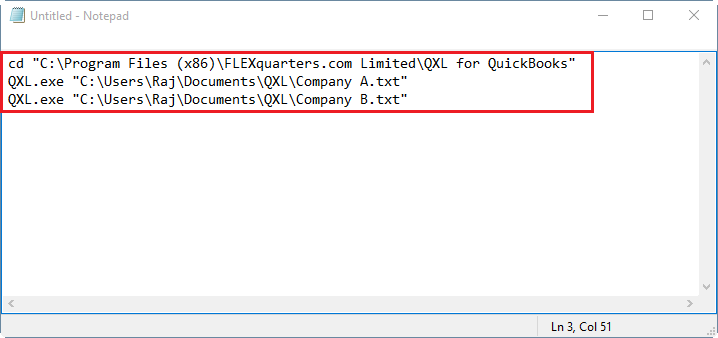
You can create a batch file & can insert ds-commands commands-commands commands for exporting QuickBooks data for multiple company files. So it will export data from various company files one by one. To create a batch of the file, you need to open "Notepad" & write the below command. cd "C:\Program Files (x86)\FLEXquarters.com Limited\QXL for QuickBooks" QXL.exe "C:\Users\Raj\Documents\QXL\Company A.txt" QXL.exe "C:\Users\Raj\Documents\QXL\Company B.txt"
Save your file by heading to ", "le," "Save As."
Select "All Files (*.*)" as "Save as type:" and enter the name of the file that you'd like & click on. "ve."
The batch file is created.
You can schedule a batch file using the scheduler. It will be run on schedule time. For scheduling the bafiles file, you can refer to the above steps. Just one step change, the path of the batch file, the rest of the steps are the same as above.
Example of Command line arguments/parameters for QXL DesktopYou can run QXL through the ugh command prompt & can set parameters.
Execute the command line argument by using the sample below. You can add/remove/chase no par value per your requirement.
Note: The command prompt supports up to 8191 characters as a command line argument. So you cannot use more than 8191 characters as a command-line argument. You can use a parameter file if the command line argument exceeds 8191 characters. Refer to QXL Command line arguments/parameters for more details about QXL Parameters.
Example of Command-line arguments/parameters for QXL Online
Execute the command line argument by using the sample below. You can add/remove/chase no par value per your requirement.
QXL will start exporting data as per the provided parameters.
Also, refer to QXL Command line arguments/parameters.ters T ags: Command line arguments, DOS, parameters
| |
 (0 vote(s)) (0 vote(s)) Helpful Helpful Not helpful Not helpful |