

|
[QODBC-Desktop] How to Locate Log Files of QODBC for Troubleshooting
Posted by Juliet (QODBC Support) on 22 July 2011 07:43 AM
|
|
How to Locate Log Files of QODBC for TroubleshootingNote: The QODBC message, SDK message, and Detail Trace Log file could help locate the issue of QODBC itself quickly. Below is an instruction on how to locate them for troubleshooting. Clear All Messages Before TroubleshootingClose All the application which is used QODBC. ( if you do not close the application, QODBC may not clear old logs or may not write new logs to detail trace) First, open your QODBC setup program in QODBC Drive for QuickBooks groups -> Messages Tab, and press the "Clear QODBC Messages" and "Clear Trace Log" buttons to clear all the previous messages. Note: You could also save the existing Logs "QODBC Messages" & "Review Trace Log" before the clearing.
Turn On Detail Tracing Option with XML Information1) Turn on Detail Trace from: Start >> All Programs >> QODBC Driver for use with QuickBooks >> Configure QODBC Data Source
Go To the "System DSN" Tab, Select "QuickBooks Data" DSN & click "Configure."
Navigate to the "Message" Tab & enable the "Detail Tracing (Slow)" option.
2) Switch to the "Advanced" tab & Select "Add XML to Detail Trace Log"
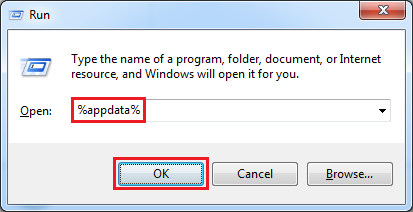
3) Apply the changes. Close all the applications. ( If any of the application is already connected, QODBC will not start logging ) Connect again. Run the Routine Activities and Locate Error MessagesRun your routine activities and take a screenshot of the error as soon as you encounter the issue, and save the logs i.e. QODBC Setup Screen-> Messages -> "Review QODBC Messages" QODBC Setup Screen-> Messages -> "Review SDK Messages" QODBC Setup Screen-> Messages -> "Review Trace Log" as separate text files and send them to the Technical Support Person for further investigations. After that, please Uncheck the "Detail Tracking Log" option. Note: Detail Tracing (Slow) creates a trace log of exactly what QODBC is doing in the background with the application and is used for debugging purposes. Ensure the log is turned off when not needed, as these can use up large amounts of disk space. Manually locate QODBC & QuickBooks SDK log files.QODBC Desktop:The QODBC Desktop Log file can be located in the User's Roaming Profile Folder. C:\Documents and Settings\UserName\Application Data\QODBC Driver for QuickBooks OR C:\Users\UserName\AppData\Roaming\QODBC Driver for QuickBooks To locate the QODBC log file, navigate to Start >> Run Enter %appdata% & click "OK."
You will find the "QODBC Driver for QuickBooks" folder under the "Roaming" folder. Open the folder to locate the logs.
OR You can open Windows Explorer and navigate to C:\Users\UserName\AppData\Roaming\QODBC Driver for QuickBooks.
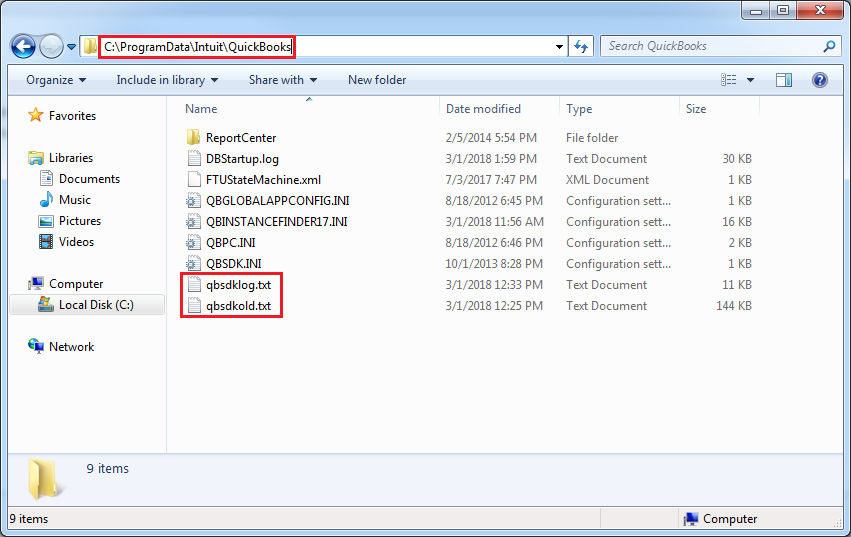
You can locate QuickBooks SDK logs from the C:\ProgramData\Intuit\QuickBooks folder.
QODBC POS:The QODBC POS Log file can be located in the User's Roaming Profile Folder. C:\Documents and Settings\UserName\Application Data\QODBC Driver for QuickBooks POS OR C:\Users\UserName\AppData\Roaming\QODBC Driver for QuickBooks POS To locate the QODBC POS log file, navigate to Start >> Run Enter %appdata% & click "OK."
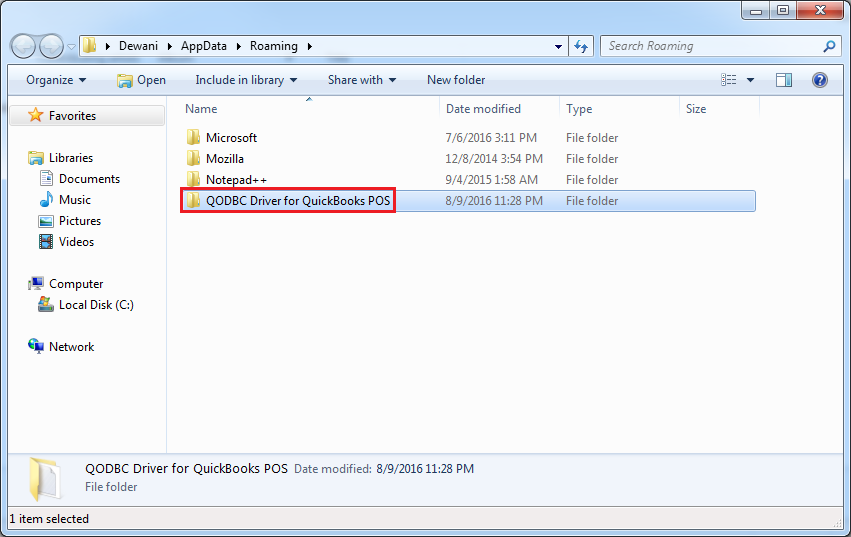
You will find the "QODBC Driver for QuickBooks POS" folder under the "Roaming" folder. Open the folder to locate the logs.
OR You can open Windows Explorer and navigate to C:\Users\UserName\AppData\Roaming\QODBC Driver for QuickBooks POS.
You can locate QuickBooks POS SDK logs from the C:\ProgramData\Intuit\QuickBooks folder.
QODBC Online:The QODBC Online Log file can be located in the User's Roaming Profile Folder. C:\Documents and Settings\UserName\Application Data\QODBC Driver for QuickBooks Online OR C:\Users\UserName\AppData\Roaming\QODBC Driver for QuickBooks Online To locate the QODBC Online log file, navigate to Start >> Run Enter %appdata% & click "OK."
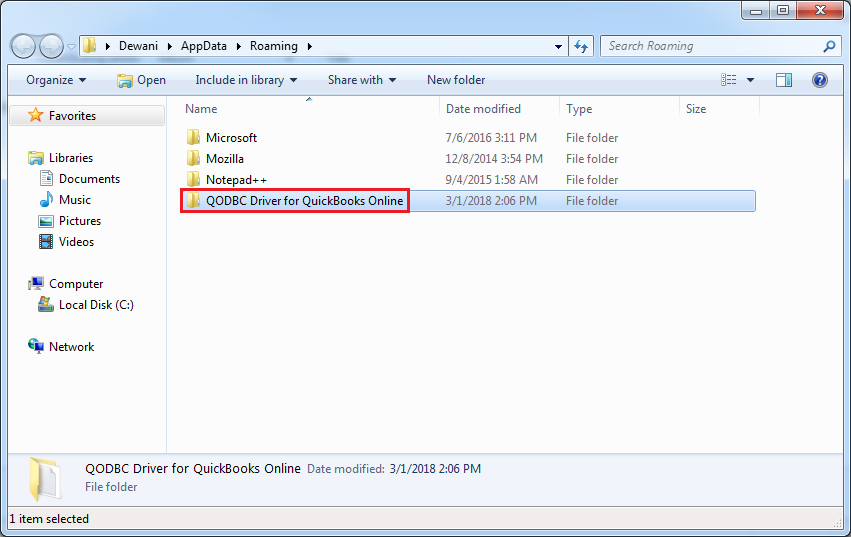
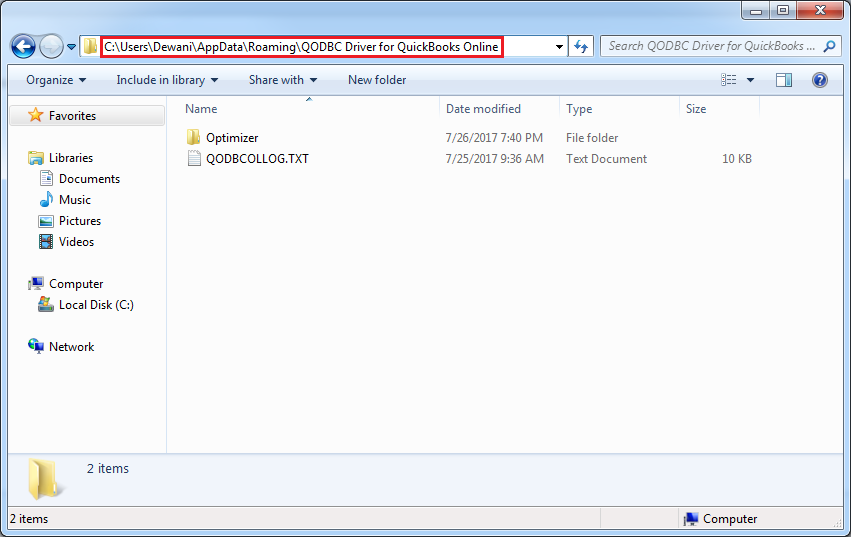
The "QODBC Driver for QuickBooks Online" folder is under the "Roaming" folder. Open the folder to locate the logs.
OR You can open Windows Explorer and navigate to C:\Users\UserName\AppData\Roaming\QODBC Driver for QuickBooks Online.
There are no QuickBooks Online API logs generated. | |
 (112 vote(s)) (112 vote(s)) Helpful Helpful Not helpful Not helpful |