


|
[QODBC-ALL] How to Configure QODBC to Work With 64-bit Microsoft Excel
Posted by Rajendra Dewani (QODBC Support) on 25 July 2012 12:13 PM
|
|
|
How to Get QODBC to go with 64-bit Access and Excel How to Configure QODBC to Work With 64-bit MS ExcelInstructions64 and 32-bit words are kept separate in the Microsoft Windows Operating System. QuickBooks 2021 and older versions are 32-bit applications, so a 32-bit ODBC driver is required to communicate with them. All versions of QuickBooks from 2002 through 2021 are built on a 32-bit architecture. In contrast, many modern applications—such as Microsoft Excel, Microsoft Access, and Microsoft SQL Server are commonly deployed in 64-bit environments. For users running QuickBooks 2021 or earlier, this architectural difference creates a compatibility challenge: 64-bit applications cannot directly communicate with 32-bit drivers. To address this limitation, we provide QRemote. For the users of QuickBooks 2021 or eariler, since a 64-Bit application cannot talk to a 32-bit driver, we have to do a bit of magic to get the worlds to connect, and we call it QRemote. QRemote works as a bridge (only for QuickBooks 2022 or lower) between 64-Bit Applications and the 32-Bit QODBC Driver by communicating data calls between the two worlds using TCP/IP protocol. QRemote allows 64-Bit Web Servers and 64-Bit applications to talk to QuickBooks Live for the first time via the QODBC Driver. For users running QuickBooks 2022 and later, this additional layer is no longer required. These versions of QuickBooks are native 64-bit applications, and the latest release of the QODBC Driver includes a fully compatible 64-bit driver. As a result, 64-bit applications can connect directly to QuickBooks (using the DSN "QuickBooks Data" ) without the need for QRemote. QRemote Server is designed to enable connectivity and compatibility across different environments and application types. Its primary use cases include:
QRemote has two components: "QRemote Client Driver for QODBC" and "QRemote Server for QODBC." QRemote Client Driver: Allows service-based applications and 64-bita pplications to connect to the QRemote Server and send the request to the QRemote Server for processing. QRemote Server: Processes requested instruction from QRemote Client to QuickBooks using QODBC DSN Driver.
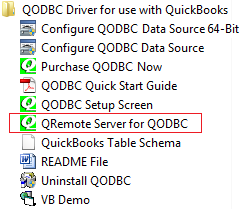
Setting Up a New QRemote Connection.Start "QRemote Server for QODBC" from the start menu.
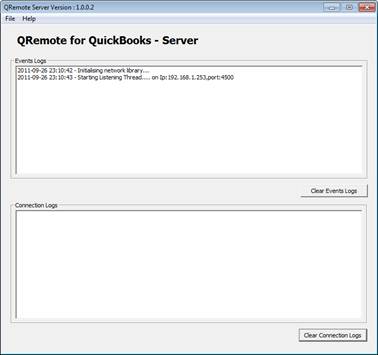
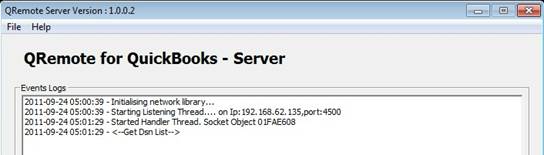
Double-click the QRemote Server icon from the system tray. QRemote Server Main screen shows the IP address and port, allowing the QRemote Client to connect.
Note the IP address and Port number listed on the QRemote Server "Event Logs " window.
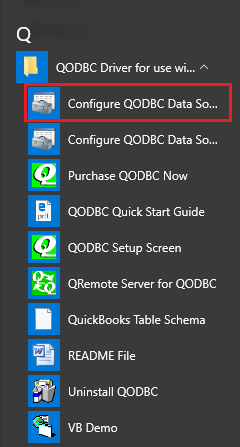
Create a new DSN entry. o Before creating A DSN entry, verify you have made a DSN entry for QODBC, which can connect to QuickBooks. Create a new DSN entry/or configure the existing oneNavigate to Start Menu, QODBC Drivers for Use with QuickBooks, and click Configure QODBC Data Source 64-bit
"QuickBooks Data 64-bit QRemote" is the default DSN created when installing QODBC. (Earlier, it was o Navigate to System DSN. Click on the "Add" Button
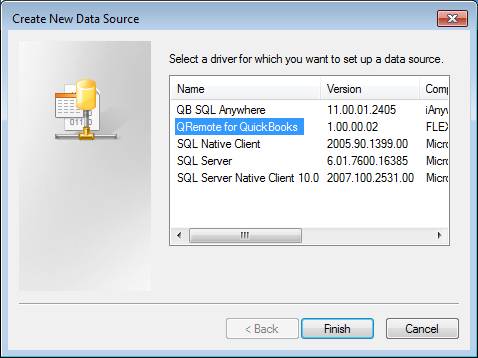
o From the driver list, select "QRemote for QuickBooks" and click "Finish."
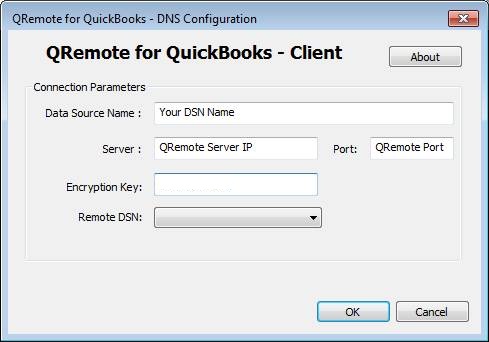
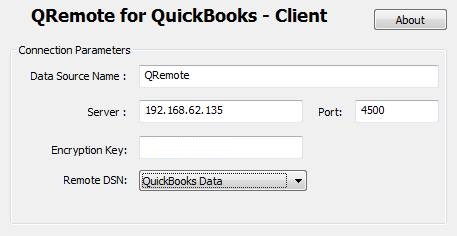
o Under the QRemote for QuickBooks – Client DSN configuration screen, please fill in the following information · Data Source Name: Name of your DSN entry · Server: IP address displayed on QRemote Server · Port: Port displayed on QRemote Server · Encryption Key: encryption key ( keep this empty ) · Remote DSN: select the QODBC DSN from the list. ( Make sure QRemote Server is running)
o, Verify the QRemote Client connects to the server, and the following logs are logged in the event window.
How to connect with 64-bit MS Excel.
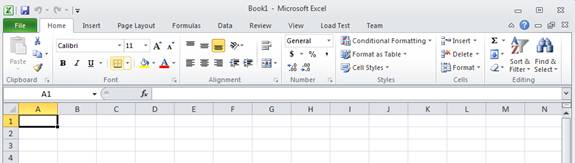
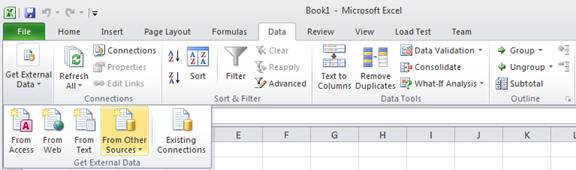
Create or Open MS Excel Spreadsheet
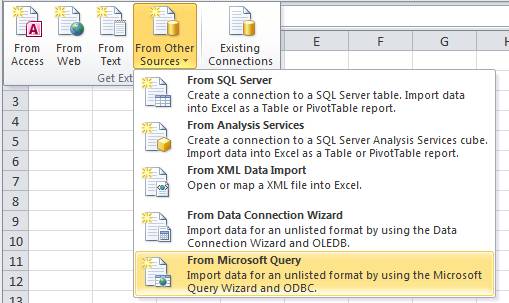
Navigate to "Data"> "From Other Sources."
Select the source as "From Microsoft Query." Note: In recent versions of Microsoft Excel (including Excel 365), the Microsoft Query (Legacy) feature is hidden by default from the Get Data tab. Please refer to Troubleshooting - How to enable Microsoft Excel 365 - Legacy Microsoft Query. Select the QRemote Client DSN entry from the list. Here we are selecting the default DSN, but you may choose the new DSN you may have created.
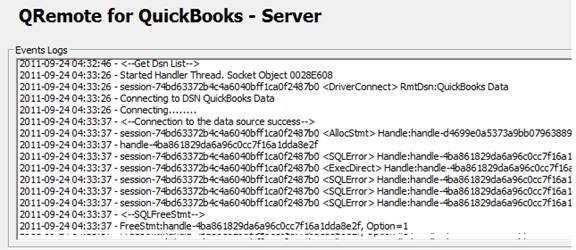
You will find the connection information getting logged under the QRemote server.
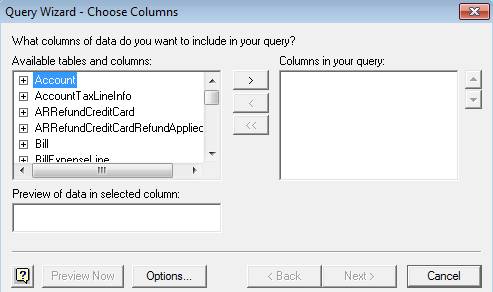
Select the table(s) you would like to import.
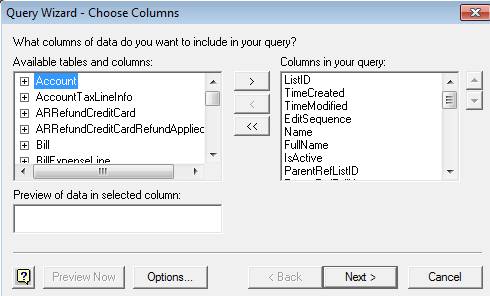
Select the columns you want from the list.t
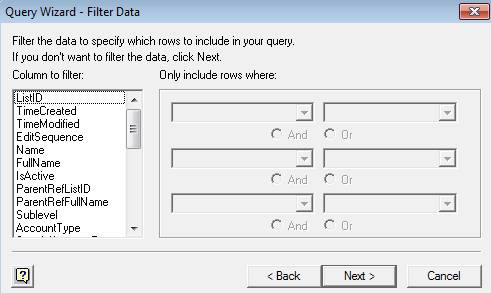
If you want to filter the data, you make settings here:
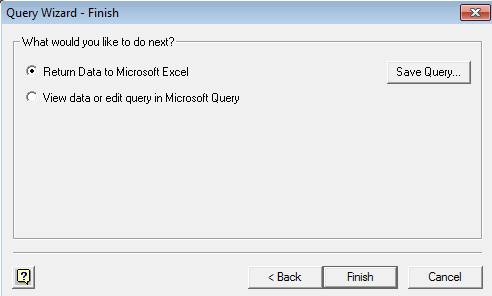
Select "Return Data to Microsoft Excel" and click the "Finish " button. on
Also, Refer Keywords: encryption | |
 (8 vote(s)) (8 vote(s)) Helpful Helpful Not helpful Not helpful |




Thanks
Tom
You can write data into QuickBooks using VBA scripts. Please refer below mentioned article for sample VBA code:
http://support.flexquarters.com/esupport/index.php?/Knowledgebase/Article/View/2571/0/using-quickbooks-data-with-vba
Above article shows 32-Bit MS Office & used " QuickBooks Data" DSN. For 64 Bit MS Office you need to use QRemote 64 bit DSN " QuickBooks Data 64-Bit QRemote".